文章詳情頁
Win10怎么把所有哈希值校驗算法添加到文件右鍵層疊菜單中?
瀏覽:177日期:2022-10-10 15:25:18
Win10怎么把所有哈希值校驗算法添加到文件右鍵層疊菜單中?此前小編給大家介紹了《Win10如何在文件右鍵菜單中添加哈希值校驗選項?》,然而很多用戶反饋能否將所有哈希值校驗算法添加到文件右鍵菜單中,最好是層疊菜單。辦法當然是有啦,同樣需要制作一個注冊表文件添加到注冊表中,下面我們來看看具體的操作方法。
Win10怎么把所有哈希值校驗算法添加到文件右鍵層疊菜單中?
1、把下面的內容復制到記事本中:
01Windows Registry Editor Version 5.0002[HKEY_CLASSES_ROOT*shell文件哈希校驗]03"SubCommands"="MACTripleDES;MD5;RIPEMD160;SHA1;SHA256;SHA384;SHA512"04"MUIVerb"="文件哈希校驗"05[HKEY_LOCAL_MACHINESOFTWAREMicrosoftWindowsCurrentVersionExplorerCommandStoreshellMACTripleDES]06@="MACTripleDES"07[HKEY_LOCAL_MACHINESOFTWAREMicrosoftWindowsCurrentVersionExplorerCommandStoreshellMACTripleDEScommand]08@="PowerShell Get-FileHash -Algorithm MACTripleDES "%1" | format-list;“按任意鍵退出...”;[Console]::Readkey() | Out-Null;exit"09[HKEY_LOCAL_MACHINESOFTWAREMicrosoftWindowsCurrentVersionExplorerCommandStoreshellMD5]10@="MD5"11[HKEY_LOCAL_MACHINESOFTWAREMicrosoftWindowsCurrentVersionExplorerCommandStoreshellMD5command]12@="PowerShell Get-FileHash -Algorithm MD5 "%1" | format-list;“按任意鍵退出...”;[Console]::Readkey() | Out-Null;exit"13[HKEY_LOCAL_MACHINESOFTWAREMicrosoftWindowsCurrentVersionExplorerCommandStoreshellRIPEMD160]14@="RIPEMD160"15[HKEY_LOCAL_MACHINESOFTWAREMicrosoftWindowsCurrentVersionExplorerCommandStoreshellRIPEMD160command]16@="PowerShell Get-FileHash -Algorithm RIPEMD160 "%1" | format-list;“按任意鍵退出...”;[Console]::Readkey() | Out-Null;exit"17[HKEY_LOCAL_MACHINESOFTWAREMicrosoftWindowsCurrentVersionExplorerCommandStoreshellSHA1]18@="SHA1"19[HKEY_LOCAL_MACHINESOFTWAREMicrosoftWindowsCurrentVersionExplorerCommandStoreshellSHA1command]20@="PowerShell Get-FileHash -Algorithm SHA1 "%1" | format-list;“按任意鍵退出...”;[Console]::Readkey() | Out-Null;exit"21[HKEY_LOCAL_MACHINESOFTWAREMicrosoftWindowsCurrentVersionExplorerCommandStoreshellSHA256]22@="SHA256"23[HKEY_LOCAL_MACHINESOFTWAREMicrosoftWindowsCurrentVersionExplorerCommandStoreshellSHA256command]24@="PowerShell Get-FileHash -Algorithm SHA256 "%1" | format-list;“按任意鍵退出...”;[Console]::Readkey() | Out-Null;exit"25[HKEY_LOCAL_MACHINESOFTWAREMicrosoftWindowsCurrentVersionExplorerCommandStoreshellSHA384]26@="SHA384"27[HKEY_LOCAL_MACHINESOFTWAREMicrosoftWindowsCurrentVersionExplorerCommandStoreshellSHA384command]28@="PowerShell Get-FileHash -Algorithm SHA384 "%1" | format-list;“按任意鍵退出...”;[Console]::Readkey() | Out-Null;exit"29[HKEY_LOCAL_MACHINESOFTWAREMicrosoftWindowsCurrentVersionExplorerCommandStoreshellSHA512]30@="SHA512"31[HKEY_LOCAL_MACHINESOFTWAREMicrosoftWindowsCurrentVersionExplorerCommandStoreshellSHA512command]32@="PowerShell Get-FileHash -Algorithm SHA512 "%1" | format-list;“按任意鍵退出...”;[Console]::Readkey() | Out-Null;exit"復制代碼Windows Registry Editor Version 5.00[HKEY_CLASSES_ROOT*shell文件哈希校驗]"SubCommands"="MACTripleDES;MD5;RIPEMD160;SHA1;SHA256;SHA384;SHA512""MUIVerb"="文件哈希校驗"[HKEY_LOCAL_MACHINESOFTWAREMicrosoftWindowsCurrentVersionExplorerCommandStoreshellMACTripleDES]@="MACTripleDES"[HKEY_LOCAL_MACHINESOFTWAREMicrosoftWindowsCurrentVersionExplorerCommandStoreshellMACTripleDEScommand]@="PowerShell Get-FileHash -Algorithm MACTripleDES "%1" | format-list;“按任意鍵退出...”;[Console]::Readkey() | Out-Null;exit"[HKEY_LOCAL_MACHINESOFTWAREMicrosoftWindowsCurrentVersionExplorerCommandStoreshellMD5]@="MD5"[HKEY_LOCAL_MACHINESOFTWAREMicrosoftWindowsCurrentVersionExplorerCommandStoreshellMD5command]@="PowerShell Get-FileHash -Algorithm MD5 "%1" | format-list;“按任意鍵退出...”;[Console]::Readkey() | Out-Null;exit"[HKEY_LOCAL_MACHINESOFTWAREMicrosoftWindowsCurrentVersionExplorerCommandStoreshellRIPEMD160]@="RIPEMD160"[HKEY_LOCAL_MACHINESOFTWAREMicrosoftWindowsCurrentVersionExplorerCommandStoreshellRIPEMD160command]@="PowerShell Get-FileHash -Algorithm RIPEMD160 "%1" | format-list;“按任意鍵退出...”;[Console]::Readkey() | Out-Null;exit"[HKEY_LOCAL_MACHINESOFTWAREMicrosoftWindowsCurrentVersionExplorerCommandStoreshellSHA1]@="SHA1"[HKEY_LOCAL_MACHINESOFTWAREMicrosoftWindowsCurrentVersionExplorerCommandStoreshellSHA1command]@="PowerShell Get-FileHash -Algorithm SHA1 "%1" | format-list;“按任意鍵退出...”;[Console]::Readkey() | Out-Null;exit"[HKEY_LOCAL_MACHINESOFTWAREMicrosoftWindowsCurrentVersionExplorerCommandStoreshellSHA256]@="SHA256"[HKEY_LOCAL_MACHINESOFTWAREMicrosoftWindowsCurrentVersionExplorerCommandStoreshellSHA256command]@="PowerShell Get-FileHash -Algorithm SHA256 "%1" | format-list;“按任意鍵退出...”;[Console]::Readkey() | Out-Null;exit"[HKEY_LOCAL_MACHINESOFTWAREMicrosoftWindowsCurrentVersionExplorerCommandStoreshellSHA384]@="SHA384"[HKEY_LOCAL_MACHINESOFTWAREMicrosoftWindowsCurrentVersionExplorerCommandStoreshellSHA384command]@="PowerShell Get-FileHash -Algorithm SHA384 "%1" | format-list;“按任意鍵退出...”;[Console]::Readkey() | Out-Null;exit"[HKEY_LOCAL_MACHINESOFTWAREMicrosoftWindowsCurrentVersionExplorerCommandStoreshellSHA512]@="SHA512"[HKEY_LOCAL_MACHINESOFTWAREMicrosoftWindowsCurrentVersionExplorerCommandStoreshellSHA512command]@="PowerShell Get-FileHash -Algorithm SHA512 "%1" | format-list;“按任意鍵退出...”;[Console]::Readkey() | Out-Null;exit"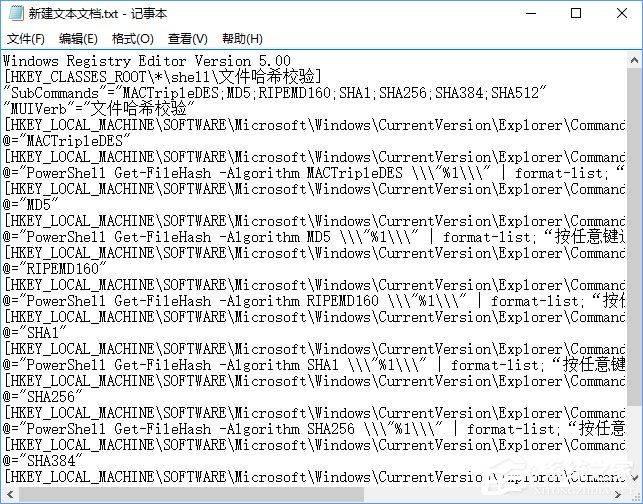
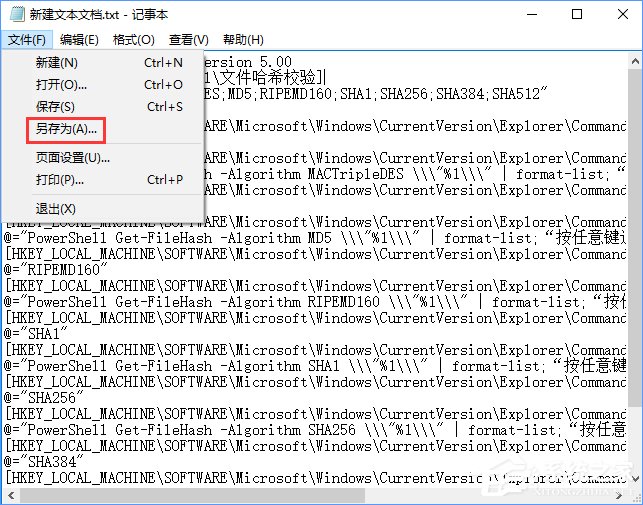
2、點擊記事本左上角的【文件】,在下拉菜單中點擊【另存為】;
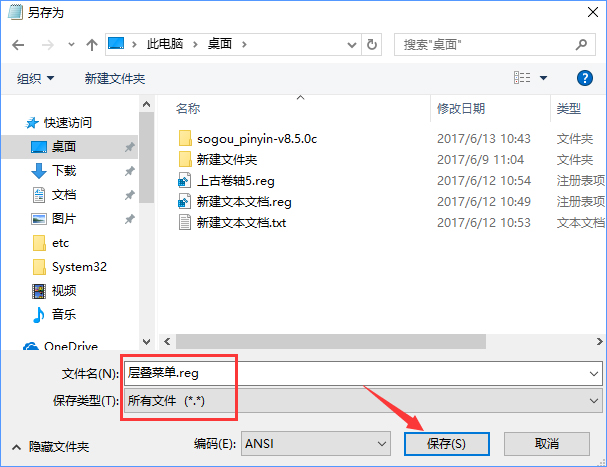
3、、在另存為窗口中,點擊窗口左側的【桌面】,在文件名(N)欄中輸入:層疊菜單.reg,再點擊:保存;
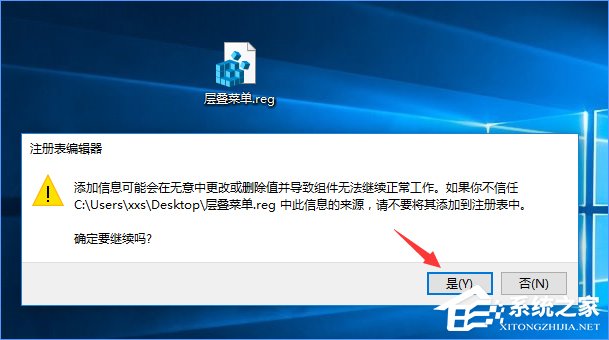
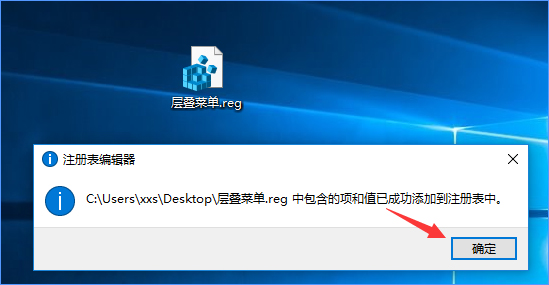
4、回到系統桌面,左鍵雙擊【哈希值校驗.reg】注冊表文件圖標,在彈出的注冊表編輯器對話框中先后點擊:是(Y)和確定;
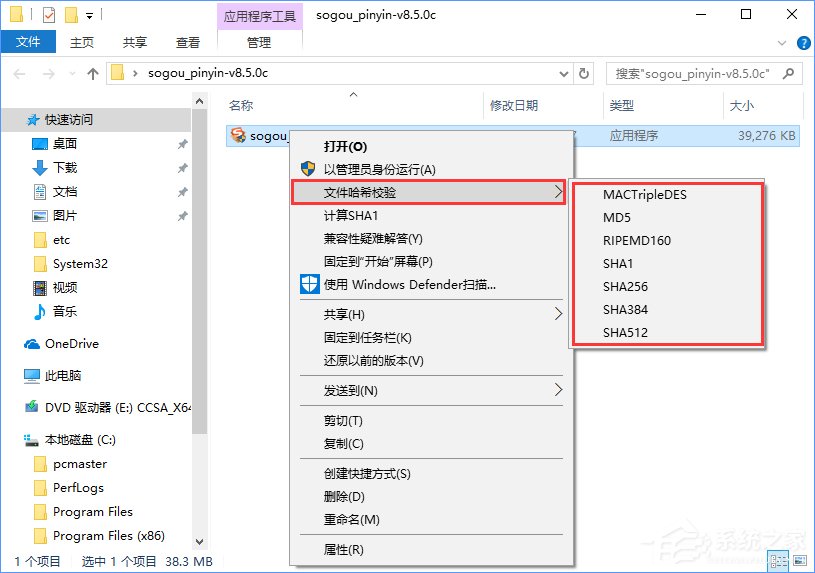
5、大功告成,獻上文件右鍵菜單效果圖:
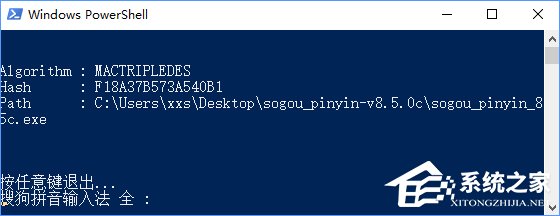
6、多種哈希算法校驗效果圖:
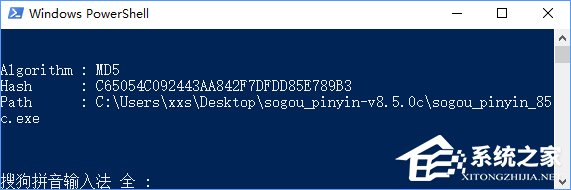
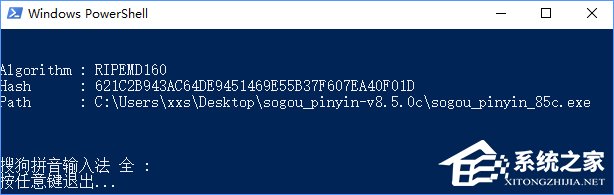
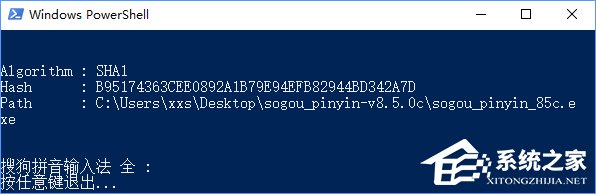
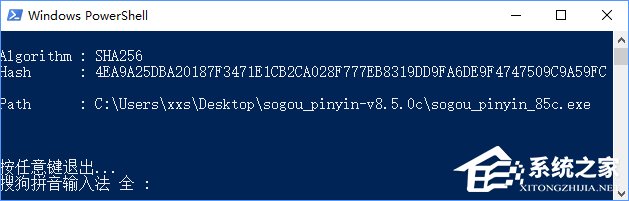
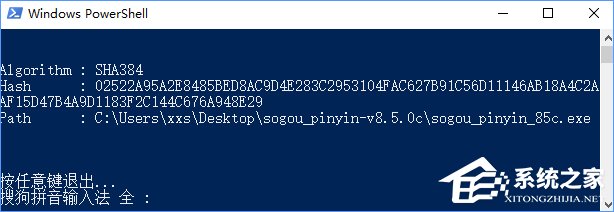
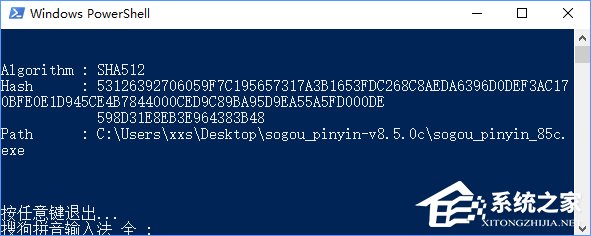
上述便是Win10在文件右鍵菜單中添加所有哈希值校驗算法的操作教程,方法相對簡單,只需為注冊表添加一個文件即可,有需要的伙伴可以按照教程操作設置。
相關文章:
排行榜
 網公網安備
網公網安備